
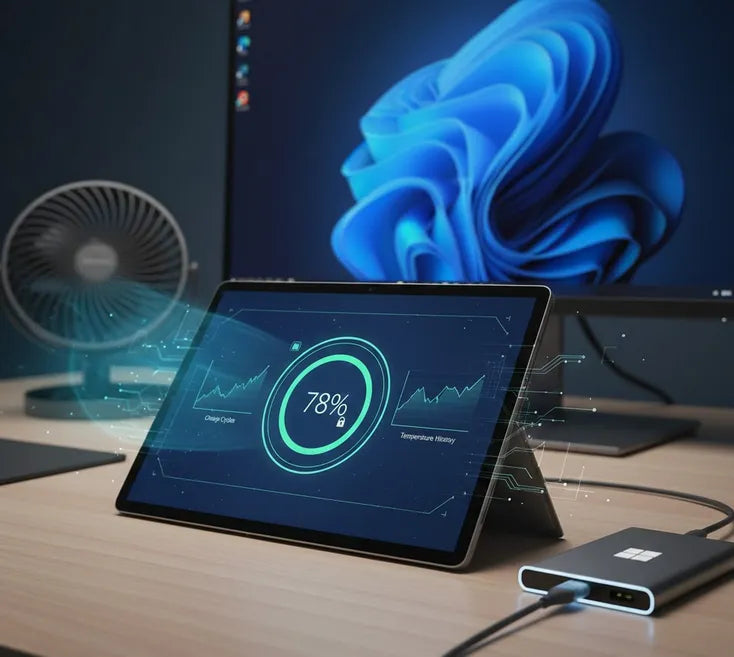
Your Microsoft Surface Pro is a marvel of engineering. It packs laptop-grade power into a tablet’s slim chassis. However, this compact design creates unique challenges for the internal battery.
Most Surface models use Lithium-ion (Li-ion) batteries. These cells are valued for their high energy density. They allow you to work for hours without a bulky power brick. Yet, Li-ion batteries are consumable parts that degrade over time.
Understanding Battery Cycles
Every battery has a finite number of "cycles." A cycle occurs when you use 100% of the battery's capacity. This doesn't have to happen in one sitting. Using 50% today and 50% tomorrow counts as one full cycle.
Microsoft designs Surface batteries to retain capacity for roughly 300 to 500 cycles. After this point, you may notice a dip in performance. Our goal is to slow down the arrival of that inevitable decline.
The Impact of Modern Workflows
We often demand a lot from our devices. Video conferencing and 4K streaming generate significant internal heat. Heat is the primary enemy of battery chemistry.
When a battery gets too hot, its internal resistance increases. This leads to faster degradation of the lithium ions. Understanding this relationship is the first step toward better maintenance.

Smart Charging Habits: Beyond the 100% Myth
Charging your Surface Pro seems simple. You plug it in when the battery is low. However, the way you charge dictates how many years your battery lasts. Constant exposure to high voltage is a silent killer for lithium cells.
The Problem with 100%
Keeping your device at 100% charge creates "voltage stress." Think of a battery like a spring. A fully charged battery is like a tightly compressed spring. It wants to release that energy immediately.
Staying at maximum capacity for weeks degrades the chemical structure. Research shows that lithium batteries prefer a "sweet spot." This range is usually between 20% and 80% total capacity. Staying within these bounds can double your battery's lifespan.
Utilizing Surface Battery Limit Mode
Microsoft built a specific tool for "desk users." If your Surface stays plugged into a dock, use Battery Limit Mode. This feature is found within the UEFI settings. It caps the maximum charge at exactly 50%.
| Feature | Benefit | Best For |
| Smart Charging | Pauses charging at 80% automatically. | Daily mobile users. |
| Battery Limit | Hard cap at 50% charge level. | Permanent desk setups. |
This prevents the battery from "trickle charging" at high voltages. It significantly reduces chemical wear over long periods.
Avoid the "Deep Discharge"
Many users believe they should run the battery to 0%. This is a holdover from old "nickel-cadmium" battery tech. For modern Surface devices, a 0% drop is dangerous.
A deep discharge can cause a battery to enter a "sleep state." Sometimes, the charger cannot wake the battery back up. Always aim to plug in your device before it hits 10%. Windows usually sends a warning at 20% for this reason.
The Role of Official Chargers
Always use the original Microsoft Surface Connect charger. Third-party chargers often lack stable voltage regulation. Inconsistent power delivery causes "micro-cycling."
These tiny fluctuations heat the battery rapidly. Official chargers communicate with the device firmware to optimize flow. This synergy ensures the cells stay stable during fast-charging sessions.

Thermal Management: Keeping Your Surface Cool Under Pressure
Heat is the absolute primary enemy of your Surface Pro’s battery life. High temperatures don't just drain your current charge; they permanently damage the battery's chemistry. Understanding how to manage thermals is essential for long-term health.
The Impact of High Temperatures
Research indicates that operating a lithium-ion battery at () can cut its cycle life by nearly . In a thin device like the Surface Pro, internal temperatures can spike quickly.
When the back of your device feels hot, the battery cells are under stress. This stress causes the electrolyte inside to decompose. Over time, this leads to permanent capacity loss and, in extreme cases, battery swelling.
Optimize Your Physical Workspace
Always place your Surface on a hard, flat surface during intensive tasks. Using the device on a bed or sofa traps heat against the chassis. The metal casing of the Surface acts as a giant heat sink.
If you use your device for gaming or video editing, consider an external fan. Many "power users" point a small USB fan at the back of the kickstand. This simple trick can drop internal temperatures by to .
Identify and Stop Thermal Throttling
Windows protects your hardware by "throttling" the CPU when it gets too hot. You may notice your device becoming sluggish or the screen dimming. This is a sign that your battery is also suffering from thermal load.
| Surface Temp Range | Impact on Battery | Action Required |
| 0°C - 35°C | Optimal Range | No action needed. |
| 36°C - 45°C | Accelerated Aging | Switch to "Best Power Efficiency." |
| Above 45°C | Rapid Degradation | Shut down or use external cooling. |
Smart Habits During Charging
Charging naturally generates heat due to internal resistance. Using your device for heavy tasks while it charges creates a "double heat" effect.
If you must work while charging, stick to light tasks like word processing. Save the video calls and Photoshop for when the device is either fully charged or unplugged. This prevents the battery from sitting at high voltage and high temperature simultaneously.

Software Optimization: Windows Settings That Save Cells
Your software environment dictates how hard your hardware works. Windows 11 includes several "hidden" features designed specifically for the Surface line. Tuning these settings reduces the "load" on the battery, preventing premature wear.
Leverage Windows Power Modes
Windows allows you to balance performance and energy consumption. Click the battery icon in your taskbar to see the power slider.
For most tasks, "Recommended" or "Best Power Efficiency" is ideal. These modes reduce the CPU's clock speed during idle moments. This prevents the battery from discharging too rapidly. A slower discharge rate keeps the internal chemistry stable and cool.
Manage Background Activity
Background apps are often "vampire" drains on your battery. They use the processor and Wi-Fi even when the screen is off.
Navigate to Settings > System > Power & Battery. Look at the "Battery usage per app" section. This tool shows you exactly which programs are the culprits.
If an app like Chrome or Spotify uses too much energy, limit its background permissions. Selecting "Power optimized" for these apps can save significant daily capacity.
Use Brightness and Refresh Rate Wisely
The Surface Pro screen is beautiful but power-hungry. High-resolution displays require significant energy to stay lit.
- Adaptive Brightness: Enable this to let the Surface adjust to ambient light.
- Dynamic Refresh Rate (DRR): If your Surface supports 120Hz, use DRR. This drops the refresh rate to 60Hz when you are looking at a static image.
Enable Battery Saver Automatically
Set your "Battery Saver" to turn on at 20% or 30%. This mode limits sync frequency and lowers screen brightness. It acts as a safety net to prevent your device from hitting the dangerous 0% mark. By slowing the drain at the end of the charge, you reduce the intensity of the final discharge phase.

Long-Term Storage and Maintenance Protocols
How you treat your Surface when you aren't using it matters. Many users accidentally damage their batteries during periods of inactivity. Following a strict maintenance protocol ensures your device is ready when you return.
The 50% Storage Rule
Never store your Surface Pro with a completely flat battery. Conversely, do not store it at 100% for long periods. If you plan to leave it for weeks, charge it to exactly 50%.
Lithium ions are most stable at this middle voltage point. This prevents the "chemical collapse" that occurs at 0%. It also avoids the "gas buildup" that can happen at 100%. Check the device every few months to ensure it stays near this level.
Keep Firmware Updated
Microsoft frequently releases firmware updates specifically for battery management. These updates refine how the device handles "trickle charging." They also improve thermal profiles for the latest apps.
Check Windows Update regularly for "Optional Updates." These often contain critical Surface-specific hardware drivers. Staying current is the easiest way to benefit from Microsoft’s latest engineering research.
Monitor Battery Health Reports
You can generate a detailed "Battery Report" using a hidden Windows command. This report shows your battery’s original capacity versus its current capacity.
- Right-click the Start button and select Terminal (Admin).
- Type
powercfg /batteryreportand press Enter. - Open the saved HTML file to view your data.
Monitoring this once every six months helps you spot sudden health drops. If the "Full Charge Capacity" is plummeting, it may be time for a professional check-up.

Summary of Best Practices
- Keep the charge between 20% and 80% for daily use.
- Enable Battery Limit Mode if you use a dock permanently.
- Avoid using the device on soft surfaces like beds.
- Update your firmware to the latest version monthly.
By following these professional tips, you maximize your investment. Your Surface Pro will remain a powerful tool for years to come.
