
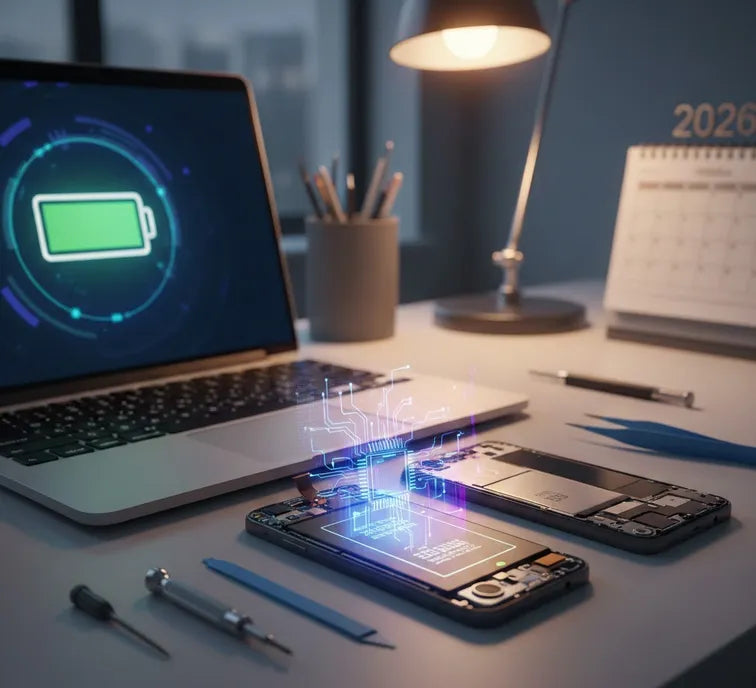
Lithium-ion batteries are the gold standard for portable energy. They offer high energy density and low self-discharge. However, they are not immortal. Every charge cycle chemically alters the internal components. Understanding this process helps you manage expectations.
How Li-ion Batteries Work
A Li-ion battery moves ions between two electrodes. This movement creates the electricity that powers your phone or laptop. Over time, the electrolyte inside begins to break down. This degradation is a natural part of the battery's life cycle.
Standard Li-ion cells usually last 300 to 500 full cycles. After this point, capacity typically drops to 80%. You will notice the device dying much faster then. Heat is the primary enemy of this chemical reaction. High temperatures accelerate the breakdown of internal components.
The Phenomenon of "Voltage Sag"
As batteries age, their internal resistance increases. This leads to a phenomenon called voltage sag. You might see 20% power left on your screen. Suddenly, the device shuts down without warning.
This happens because the battery cannot provide steady voltage. The device’s processor demands power, but the battery fails to deliver. Modern software tries to manage this by slowing down your device. This is why older phones often feel sluggish.
Common Signs of a Dying Battery
It is important to recognize the early warning signs. Early detection can prevent total device failure. Look for these specific symptoms:
- The device gets unusually hot during simple tasks.
- Battery percentages jump erratically within minutes.
- The back panel of the device appears slightly swollen.
- The device only works when plugged into a charger.
Setting Realistic Expectations
No software trick can fix a physically degraded cell. Chemical aging is irreversible. However, many "quick dying" issues are actually software-related. We must distinguish between a "worn out" battery and a "mismanaged" one.
Research shows that user habits significantly impact battery health. For instance, keeping a battery at 100% creates stress. Similarly, letting it drop to 0% is equally harmful. Most experts recommend staying between 20% and 80%.
Diagnosing the Drain: Software vs. Hardware
Before spending money on a replacement, you must find the root cause. A battery that drains fast isn't always physically broken. Often, "vampire" processes or poor configurations are the true culprits.
Identifying Background Power Consumers
Modern operating systems provide detailed power usage statistics. On mobile devices, check your settings for a "Battery Usage" report. This tool reveals which apps consume the most energy.
Look for apps with high background activity. Social media and navigation apps often run constantly. They sync data and track your location in real-time. This constant communication forces the battery to work harder. If an app uses 20% power while not in use, delete it.
The Role of System Calibration
Sometimes, the software "forgets" the battery's true capacity. This results in inaccurate percentage readings. Your phone might stay at 1% for hours or die at 30%. This is often a calibration error rather than a hardware failure.
To recalibrate, let the battery drain until the device shuts off. Charge it to 100% without interruption while it remains powered down. This reset helps the internal controller sync with the actual cell voltage. Perform this once every three months to maintain accuracy.
Environmental Impact on Performance
Lithium-ion chemistry is highly sensitive to the surrounding environment. Cold weather slows down ion movement, causing temporary capacity loss. In extreme cold, a battery may report 0% even if it is full.
High heat is even more dangerous for your hardware. Temperatures above 35°C (95°F) can cause permanent chemical damage. If your device feels hot to the touch, the battery is degrading. Avoid using high-performance apps while the device is charging.
| Factor | Effect on Battery Life | Recommended Action |
| High Brightness | Extreme Drain | Use Auto-Brightness |
| Push Sync | Constant Background Drain | Change to Manual Fetch |
| Extreme Heat | Permanent Capacity Loss | Keep in Cool Areas |
| Old Software | Inefficient Power Logic | Keep OS Updated |
Using Diagnostic Software
Advanced users can use specialized tools to check "Battery Health." On MacBooks, you can check the cycle count in System Report. Windows users can generate a "Battery Report" via the Command Prompt.
A healthy battery should show a "Design Capacity" close to its "Full Charge Capacity." If the full charge capacity is below 80%, the cell is nearing the end of its life. At this stage, software fixes will only offer marginal improvements.
Proactive Optimization Strategies
Once you have identified the source of the drain, you must take action. Optimization is about reducing unnecessary workloads. By streamlining operations, you reduce the "strain" on the chemical cells. This chapter focuses on digital hygiene and efficiency.
Mastering Display and Connectivity Settings
The screen is usually the largest power consumer. Reducing brightness is the most effective way to save energy. Modern OLED screens benefit significantly from "Dark Mode." Dark pixels on an OLED panel actually turn off, saving power.
Connectivity features also hunt for signals constantly. If your Wi-Fi signal is weak, the device boosts power to find it. This "searching" behavior generates heat and drains the cell. Turn off Bluetooth and Location Services when they are not needed. Use Airplane Mode in areas with no cellular service.
Managing App Refresh and Notifications
Many apps refresh in the background to show new content. This process wakes the processor from its "sleep" state. Every wake-up cycle sips a small amount of power. Over a full day, these small sips become a large gulp.
Go to your settings and disable "Background App Refresh." Only allow essential apps like email or messaging to update automatically. Additionally, limit the number of push notifications you receive. Every time your screen lights up for a notification, energy is wasted.
Leverage Low Power Modes Effectively
Every modern OS includes a built-in "Power Saving" or "Low Power" mode. These modes do more than just dim the screen. They often reduce the clock speed of the CPU. This makes the device slightly slower but much more efficient.
- iOS: Limits 5G usage and pauses iCloud Photos syncing.
- Android: Limits background data and reduces visual effects.
- Windows/macOS: Reduces screen timeout and pauses indexing.
Enable these modes manually when your battery hits 30%. You do not need to wait for the 10% warning. Proactive use can extend your usable time by several hours.
The Importance of Software Updates
Developers constantly release patches to improve energy efficiency. A "buggy" operating system can cause the CPU to run at 100% for no reason. This is known as a "runaway process."
Updates often include better thermal management drivers. These drivers regulate how the device handles heat during charging. By staying updated, you ensure your hardware uses the most efficient logic available. Always back up your data before performing a major system update.
Hardware Maintenance and Replacement Standards
Even with perfect software habits, physical hardware has a finite lifespan. In 2026, industry standards for Lithium-ion safety and performance have become more rigorous. Recognizing when a battery is no longer viable is essential for both device utility and personal safety.
The 80% Capacity Threshold
Most manufacturers define a "consumed" battery as one that has reached 80% of its original design capacity. Beyond this point, chemical degradation tends to accelerate rapidly. You may notice that the drop from 80% to 50% health happens much faster than the initial wear.
At this stage, the internal resistance of the cell increases significantly. This leads to the "voltage sag" mentioned in Chapter 1. When your device demands a burst of power, the aged battery cannot provide it. This causes sudden shutdowns, especially during intensive tasks or in cold weather.
Identifying a Swollen Battery
A "swollen" or "bloated" battery is a critical safety hazard. This occurs when the electrolyte decomposes and releases gas. This gas is trapped within the battery casing, causing it to bulge. You might notice:
- A "spongy" feel to your phone screen or laptop trackpad.
- Gaps appearing in the device's outer casing.
- The device no longer sitting flat on a table.
Never attempt to compress or puncture a swollen battery. This can lead to a thermal runaway event, causing fire or toxic smoke. If you see swelling, power down the device immediately and seek professional repair.