
If you have ever felt that your laptop’s "80% remaining" is a flat-out lie, you are not alone. Most users rely on Windows battery reports or third-party apps to judge battery health. However, those tools only scratch the surface of what is happening inside the plastic casing. To truly understand a battery, you need to talk to the Gas Gauge IC directly.
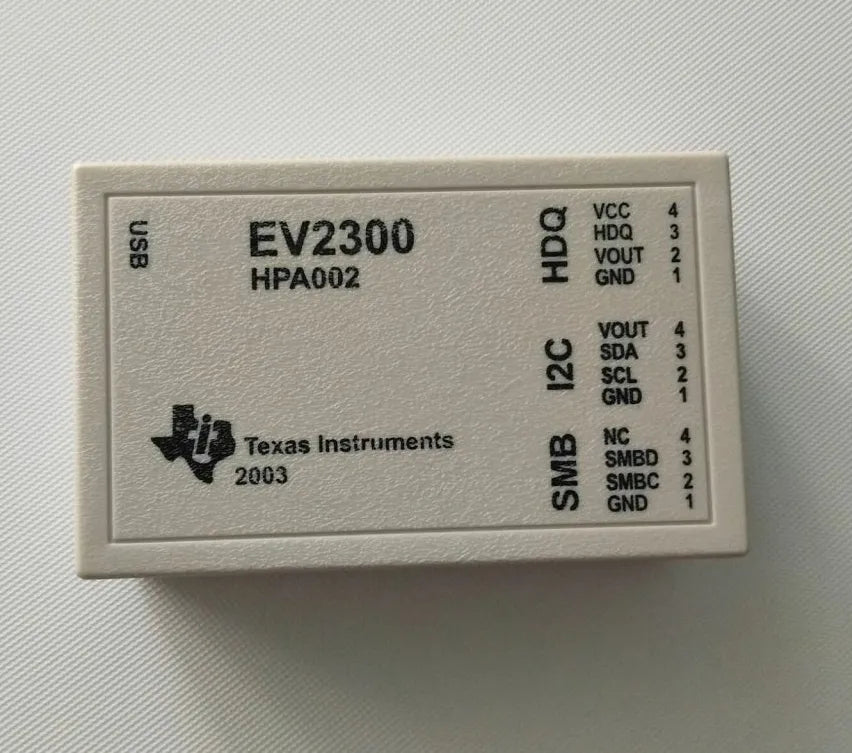
The Texas Instruments EV2300 is the industry-standard bridge for this exact purpose. It is a specialized USB-based interface board. It allows a PC to communicate with battery packs via the SMBus or HDQ protocols. This isn't just about seeing a percentage; it's about seeing the "Full Charge Capacity" (FCC) versus the "Design Capacity" in real-time.
When I first started using the EV2300, it felt like gaining X-ray vision. You can see how many times the cells have been cycled. You can even see if a specific cell string is drifting in voltage. In this guide, I will show you how to move past the generic software estimates. We will look at how to use this tool to determine if a battery is a "good" candidate for continued use or a "bad" fire hazard waiting to happen.
I will break down the connection process and the interpretation of the Smart Battery Specification (SBS) data. This is the first step in mastering professional-grade battery diagnostics.
Hardware Setup: Connecting the EV2300 to the Battery Rail
Most people think a battery is just a positive and negative terminal. On a modern laptop battery, that couldn't be further from the truth. There is a "brain" inside every pack. This brain is usually a Texas Instruments controller like the BQ20z45 or BQ40z50. To talk to it, we need to bridge the gap between your USB port and the battery's internal bus.
The EV2300 acts as this bridge. On the side of the device, you will see several ports. We are specifically looking for the SMBus (System Management Bus) port. This is the language most laptop batteries speak.
Identifying the Pinout
Before you plug anything in, you must identify the pins on the battery connector. Laptop batteries usually have 7 to 9 pins. You generally only need four of them for a successful diagnostic:
- V+ (Battery Positive): Usually the outer pins on one side.
- GND (Ground/Negative): Usually the outer pins on the opposite side.
- SCL (System Clock): Part of the SMBus communication.
- SDA (System Data): The second half of the SMBus communication.
I’ve found that using a multimeter is the only way to be 100% sure. Measure the voltage across the outer pins to find Ground and V+. The SCL and SDA pins are typically found right next to the Ground pin.
Making the Connection
Once you have identified the pins, use high-quality jumper wires. Connect the GND of the battery to the GND on the EV2300 SMBus port. Connect SDA to SDA, and SCL to SCL.
Expert’s Insight: Do not connect the V+ (Positive) pin of the battery to the EV2300. The EV2300 is powered by your computer’s USB port. Connecting the high-voltage battery rail to the data pins of your interface board is a very fast way to smell burning silicon.
Waking the Battery
Some batteries are in "Ship Mode" or have a blown chemical fuse. If you connect everything and see no data, the battery might be "asleep." Often, you need to momentarily apply a voltage (around 9V to 12V) to the V+ and GND pins. This "wakes up" the controller. Once the controller is awake, it will begin broadcasting data over the SDA and SCL lines.
If the EV2300 LEDs are blinking, you have a physical connection. Now we can move into the software environment to see what the battery is actually thinking.

Software Calibration and Reading SBS Data
Once the hardware is physically bridged, the magic happens in the software. For the EV2300, you will likely use TI Battery Management Studio (bqMS) or the older bqEvaluation Software. These tools act as a translator. They turn raw electrical pulses into the Smart Battery Specification (SBS) format we can actually read.
When you first launch the software, it should auto-detect your chip. If it asks you to select a target manually, you are looking for a device ID like "0450" or "0100." This corresponds to the firmware version of the BQ-series controller inside your battery.
The SBS Dashboard
The first screen you see is the Register View. This is the heart of battery diagnostics. Here is what you should focus on immediately:
- Voltage: Total pack voltage.
- Current: If the battery is idle, this should be near .
- Temperature: Usually reported by internal thermistors.
- Relative State of Charge (RSOC): The percentage the user sees.
- Absolute State of Charge (ASOC): The actual chemical energy remaining.
Identifying "Zombie" Batteries
I often see batteries that claim to be at 100% in Windows, but the software shows a massive gap between Full Charge Capacity (FCC) and Design Capacity (DC).
Expert’s Insight: If your DC is but your FCC is only , your battery has "shrunk." The controller has capped the capacity because the internal resistance of the cells has spiked. This is a hardware degradation that no software "calibration" can truly fix.
Monitoring Individual Cell Voltages
A healthy battery is a balanced battery. In the software, look for Cell voltage 1, 2, 3, and 4. In a high-end laptop battery (usually 3S or 4S configuration), these voltages should be within of each other.
If Cell 1 is at and Cell 2 is at , the pack is "unbalanced." The controller will stop charging as soon as the strongest cell hits the limit. This leaves the rest of the cells undercharged. This is a common reason why batteries "die" at 30%—the controller shuts down to protect the weakest link in the chain.

Interpreting Health: Wear Levels, Cycle Counts, and Lifespan
Now that the software is pulling live data, we need to separate the "marketing" numbers from the physical reality. In my experience, the two most misunderstood metrics in battery diagnostics are the Cycle Count and the Full Charge Capacity (FCC).
The Cycle Count Myth
The Cycle Count register tells you how many times the battery has discharged an amount equal to its design capacity. However, a low cycle count does not always mean a healthy battery. I have seen "New Old Stock" (NOS) batteries with 0 cycles that are completely chemically dead because they sat at 0% voltage for two years.
Conversely, a high-quality Panasonic or Sanyo cell might still have 85% health after 500 cycles. When you look at the cycle count in the EV2300 software, compare it to the State of Health (SOH) percentage. If the cycle count is low (under 50) but the SOH is below 80%, the battery has likely suffered from heat damage or poor storage conditions.
Calculating Real Wear Level
Windows calculates wear based on what the controller reports, but the EV2300 lets us see the raw (milliampere-hour) values. To find the true wear, use this simple formula:
If your Design Capacity is and your FCC is , you have a 25% wear level. In the world of high-end repair, any battery with more than 20% wear is usually considered "end of life" for professional use.
The "Sudden Death" Indicator
Watch the Voltage and Current during a brief discharge test. If the voltage drops by more than the moment a load is applied, the internal resistance (impedance) is too high.
Expert’s Insight: High impedance is the "silent killer." The battery might show 100% charge, but as soon as your laptop CPU spikes to full power, the battery voltage crashes below the cutoff threshold. This causes a sudden shutdown without warning. The EV2300 is the only way to see this impedance data before the crash happens.

Advanced Diagnostics: Analyzing Gas Gauge Static and Dynamic Data
At this final stage, we look beyond the current numbers and into the battery’s "black box." High-end battery controllers from TI store a history of every trauma the pack has endured. This is where the EV2300 separates a simple hobbyist from a diagnostic expert.
Lifetime Data Logging
Most BQ-series chips have a Lifetime Data section in the flash memory. This log records the highest and lowest temperatures the cells have ever reached. If you see a "Max Temp" above , the electrolyte has likely started to break down. Even if the capacity looks "okay" now, the internal structure is compromised.
The Permanent Failure (PF) Bit
This is the most critical check for a "dead" battery. Sometimes a battery shows at the connector even if the cells are healthy. This is because the controller has triggered a Permanent Failure.
- ASOC (State of Charge): Shows 0%.
- Operation Status: Look for flags like PF, CUV (Cell Undervoltage), or OC (Overcharge).
- Chemical Fuse: If the FUSE flag is red, the controller has physically blown a thermal fuse on the PCB.
When a battery hits a PF state, it enters a "Safety Lock." It will refuse to charge or discharge to prevent a fire. Using the EV2300, you can see exactly why it locked. Was it a voltage imbalance? Or did the temperature sensor fail?
The Impedance Track (IT) Algorithm
Modern batteries use Impedance Track technology. This means the controller constantly updates its internal model of the cell's resistance. In the software, look for the Update Status register.
- 0x00: The battery is brand new and unlearned.
- 0x04 / 0x05: The battery has been calibrated and the data is highly accurate.
- 0x0E: The battery is nearing its end of life and the resistance is too high to track reliably.
Expert’s Insight: If you see an "Update Status" of 0x0E, do not bother trying to "reset" the battery. The chemistry is physically exhausted. At this point, the internal resistance is so high that the battery will generate more heat than power. It belongs in a recycling bin, not a laptop.